Help · Getting started
Make your first form
Type the questions as you would ask them, open the form, share the link.
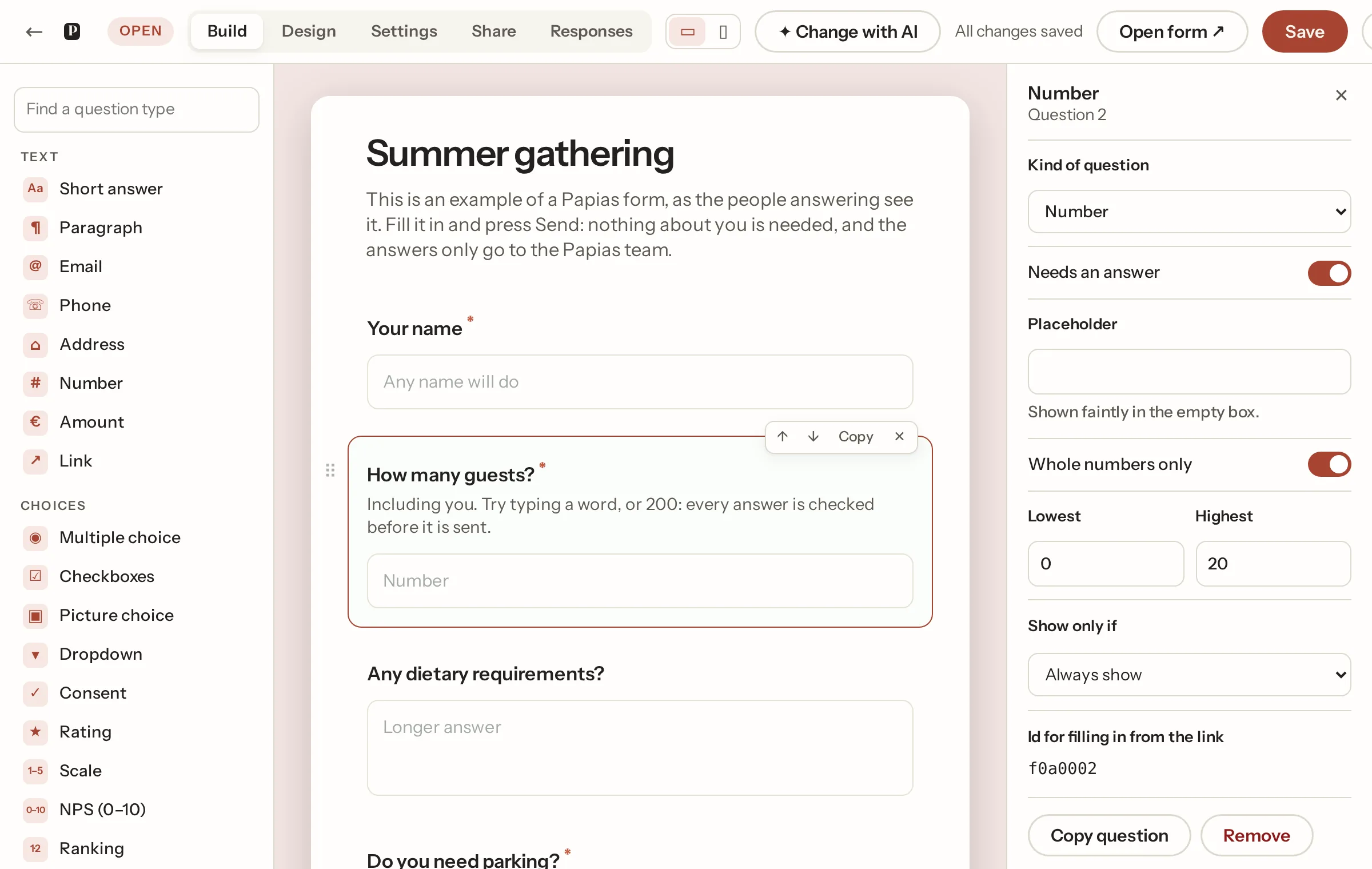
Press Create a free form anywhere on the site and the builder opens on a blank form. You don't need an account to build; you need one to open the form for answers, and the form comes with you when you sign up.
Add questions
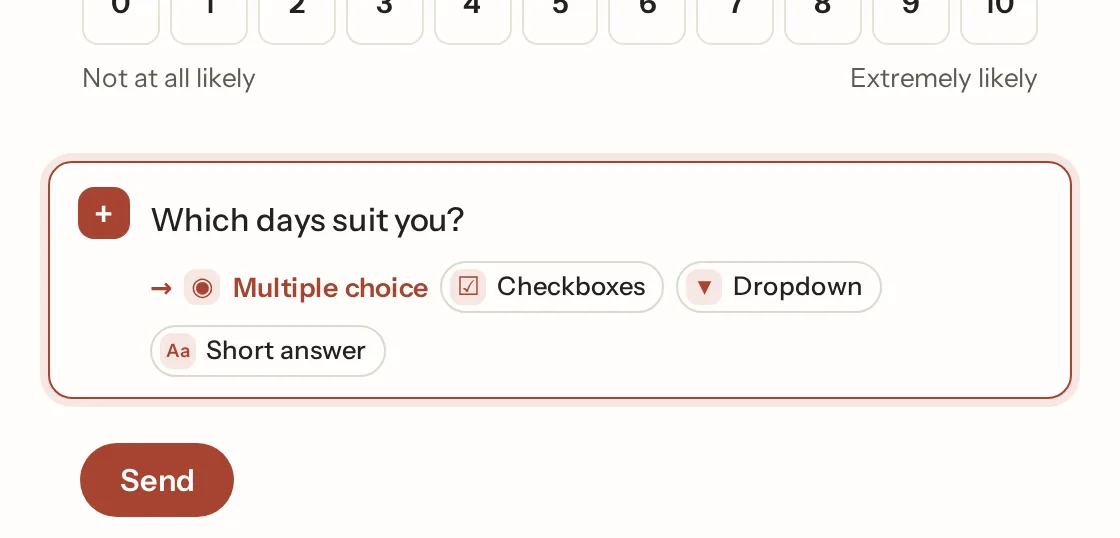
The line at the end of the form with a + is where questions go. Type a question the way you would ask it, press Enter, and it's added. Papias works out the kind of answer from the wording: "How many guests?" becomes a number, "Which days suit you?" checkboxes, "Your email" an email address, "Do you need parking?" a Yes/No choice. The guess shows under the line before you press Enter, with alternatives to click if it's wrong, and you can change the kind any time from the panel on the right.
- Type
/on the + line for a menu of every kind, or pick one from the list on the left. - Paste several lines and each becomes a question.
- Click any question to edit it in place: the wording, help text and options. On a choice, Enter adds an option and Backspace on an empty one removes it.
- Alt + ↑ / ↓ moves the selected question. Drag works too, on phones as well.
- On a phone, a question's settings (required, the kind, "show only if") are behind its Settings button; the + Add button at the bottom opens the list of kinds.
- Ctrl + S saves. Save covers everything: the questions, the settings and the share options.
Open it
A form starts as a draft, which only you can see. Press Open for answers in the top bar once it has at least one question, and the link on the Share tab is live. Changes you save to an open form change it for everyone at once. Close form stops new answers; the page then says so. The settings page can close it for you at a time or after a number of responses.
People filling in the form never need an account. They open the link on any phone or computer and see at once
that it was sent.
Make a copy
In the builder, the This form card on the Settings tab has Make a copy of this form. The copy is a new draft with its own link and the same questions, settings, look, pictures and notification addresses; its cover and logo are copies, so changing one form's never changes the other's. Responses are not copied, and neither is a webhook or a Google Sheet link: set those again on the copy if it needs them. A form made from a template works the same way: the template is copied into your workspace as a draft of your own.
Not what you were looking for? Ask us, and we'll answer and fix the page.